Uploading address-based datasets as shape-based or point-based files
Print
Created by: Susanne Mueller
Modified on: Tue, 15 Nov, 2016 at 1:06 PM
When you upload a .csv file that contains ZIP Codes, it will be treated as a shape-based or point-based file depending on the data included and the data types you assign. This article helps you understand the differences between the types of files, as well as how to make sure you upload your data so it's usable for your purpose.
Important: If you are uploading a file that contains only ZIP Codes, Rhiza for Research automatically interprets the file as a shape-based file. Otherwise, you determine whether it is uploaded as a shape-based or point-based file.
Points vs. Shapes: An Overview
You can represent your address-based data as specific points on a map or as shapes on a map.
Point-based
When you want to drop a pin on the map for each specific address, you need a point-based file. It's important to note that you can use the Geographic Area filters Radius Around Points and Near Specific only with point-based files.
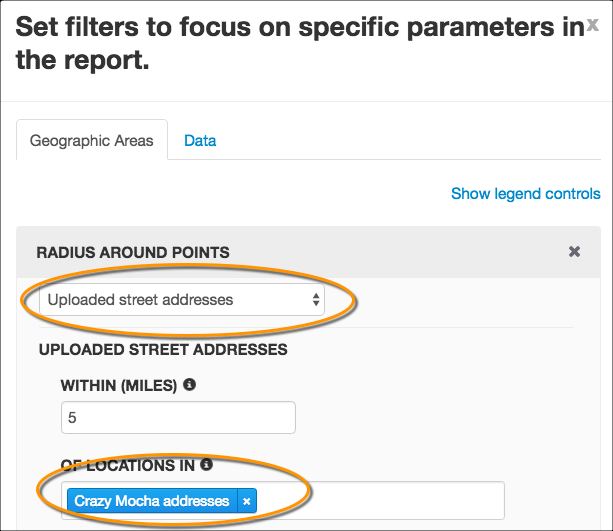
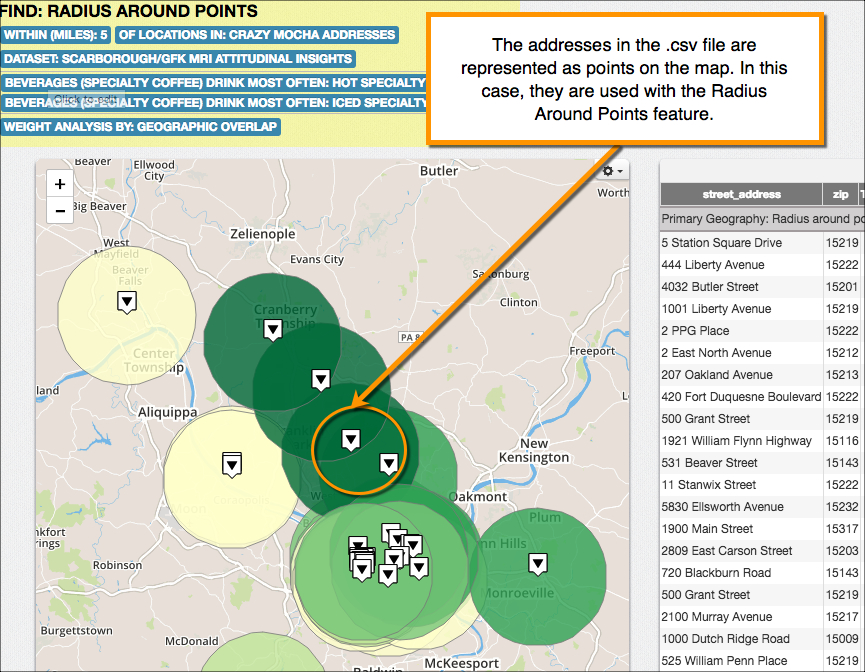
The following series of graphics shows that you can define a
Radius Around Points geographic filter that uses your uploaded addresses (in this example, the file is called Crazy Mocha address.csv); the resulting map shows each address as a point.
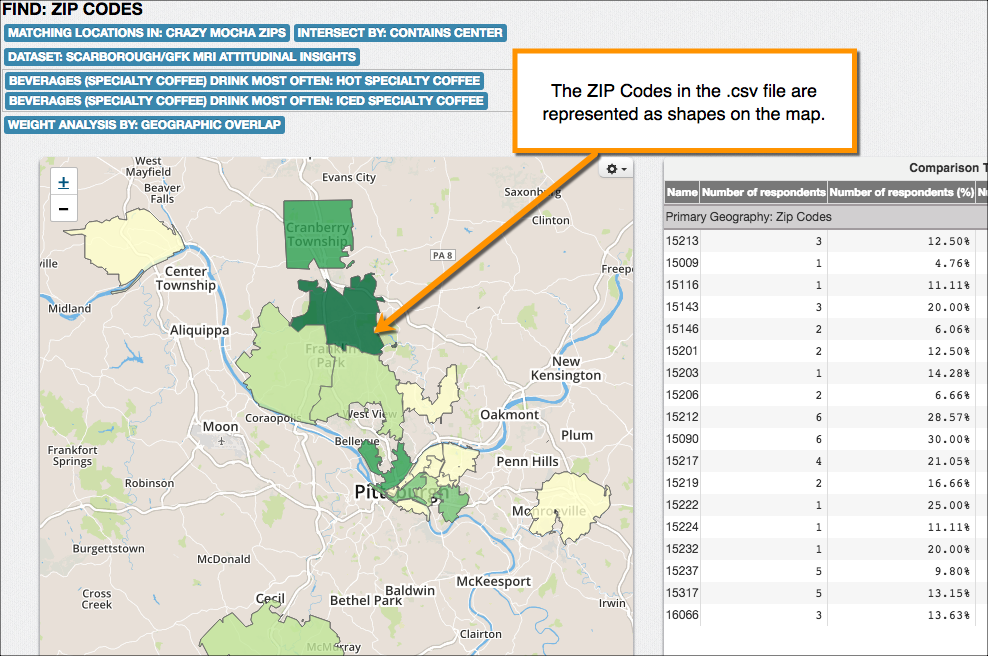
If you want to represent your addresses as shapes on a map (for example, you want to see entire ZIP Codes or a DMA), you need a shape-based file. Your uploaded shape-based file is available to use when you use the By Uploaded Shape option when defining a geographic filter.
The following graphics show how you might use an uploaded shape-based file to create a map showing ZIP Codes. In this example, it's showing the ZIP Codes where Crazy Mocha coffee shops are located.
Uploading addresses as a point-based file
To have your addresses represented as points on a map, you need to provide specific location information. When you upload your data, make sure you assign one or more of the following data types to the content in your .csv file:
- Street Address
- City
- State
- ZIP Codes (as long as there are other address data types in the file)
- County
- Latitude
- Longitude
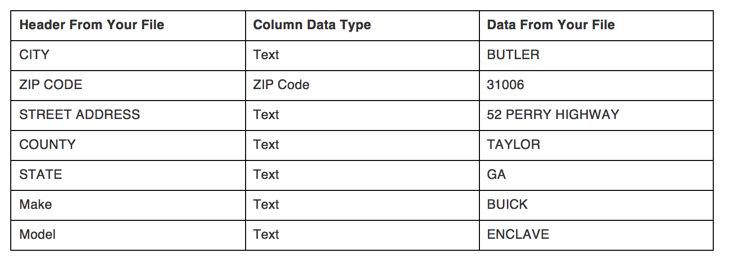
Mapping a column to one of these data types will result in a point-based file. You can find it when you use Radius Around Points or Near Specific in the Geographic Area filter options for the Geographic Report. If you do not actually want to show the point or the radius on the map, you can clear the point and radius check boxes when you configure the map.
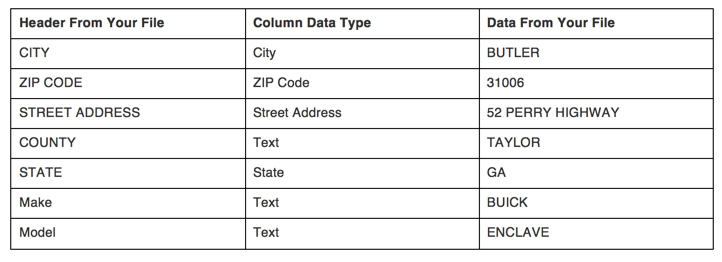
Below is a sample .csv file that shows how you might assign data types to your data in order to have them available as points.
Uploading addresses as a shape-based file
To have your addresses represented as shapes on a map, you need to assign a shape-based data type to the content when you upload your .csv file. The two data types you can use for address information are:
Mapping a column to either of these types in the Upload Dataset page will result in a shape-based file. Your file is available when you use By uploaded shape in the Geographic Area filter options for the Geographic Report.
Below is a sample .csv file that shows how you might assign data types to your data in order to have them available as shapes.
To use another example, if you upload
a .csv file that contains only a single geographic element (typically ZIP Codes), it is automatically interpreted by the system as a shape-based file. In the following example, notice that although there are three columns in the data file, only one has geographic significance.
| ZIP Code |
Sales |
Number of Stores |
| 15213 |
$12,999 |
2 |
| 15232 |
$20,549 |
4 |
| 15222 |
$29,841 |
4 |
Susanne is the author of this solution article.
Did you find it helpful?
Yes
No
Send feedback Sorry we couldn't be helpful. Help us improve this article with your feedback.