
Rhiza Research reports allow you to easily create data-backed visualizations without using complicated query language. Using a simple graphical interface, you can quickly create meaningful data series and choose a category to group results into comprehensible chunks - even for a large or complicated dataset.
With Research reports, you can:
| • | Browse or search survey datasets to easily find relevant topics |
| • | Upload your own proprietary data, or use syndicated datasets already in the system |
| • | Filter your data into meaningful series, and show results for each series broken out into categories |
| • | Explore the data in a range of customizable visualizations, including tables, column charts, and scatter plot charts |
| • | Automatically show the most or least popular results by sorting a chart |
| • | Create index values to compare groups and quickly spot interesting differences |
| • | Save the report as a presentation, which you can show as an interactive report directly from Rhiza for Research or download as a stand-alone Microsoft PowerPoint file |
Overview
These are the basic elements of a Research report:
| • | Dataset - Before starting your report, either import your own data or make sure that there is an appropriate dataset already in the system. |
| • | Data Series - In the report, create data series to represent the subsets of data you want to see by setting filters. Data series work together with the Grouping setting (described below) to define meaningful breakouts of the dataset's contents. |
| • | Grouping - You must select a grouping from the list in the report. The grouping determines how your data is aggregated; the report returns a value for each data series in each grouping. |
As a simple example, if you have a dataset with automotive sales data, you could use the Research report to set up data series to show sales in Chicago, Detroit, and Pittsburgh; and break out the data by the grouping Make. The report will return values for each combination of market and make: Chicago Chevrolet sales, Chicago Ford sales, Detroit Chevrolet sales, and so on.
1) Import Data (if necessary)
The first step in setting up a Research report is to make sure you have a dataset that it can use. Some systems come with syndicated or custom datasets pre-loaded; you also can import your own data.
You can see syndicated and uploaded datasets in your system by clicking the Data Management tab at the top of the browser window. However, in the current release, only some of the syndicated datasets in the list are accessible in the Research report. The best way to learn which datasets are available is to open a new report and use the dataset filter to search for part of a dataset name.
To upload your own data, go to the Data Management page and click Upload A Dataset.
Data can be imported from CSV or SPSS (.sav) files. CSV (comma-separated value) files can be created by most spreadsheet and database programs. SAV files are created by Statistical Package for the Social Sciences (SPSS) software.
Note: A plugin is required to import SPSS files. If your Rhizalytics system does not list .sav as an acceptable file type, contact Rhiza support about adding the plugin to your Rhizalytics installation.
When importing a dataset for use with the Spectrum report, keep these principles in mind:
| • | Only dataset variables that you classify as “Category” can be used as breakout values in the Spectrum report. So, for example, if you want to show the data aggregated by gender, or by age ranges, make sure to set those data elements as the type Category when importing the dataset. |
For detailed information about importing data, read Uploading Data in the Rhiza for Research online help.
2) Create a New Research Report
There are several ways to create a new, blank Research report:
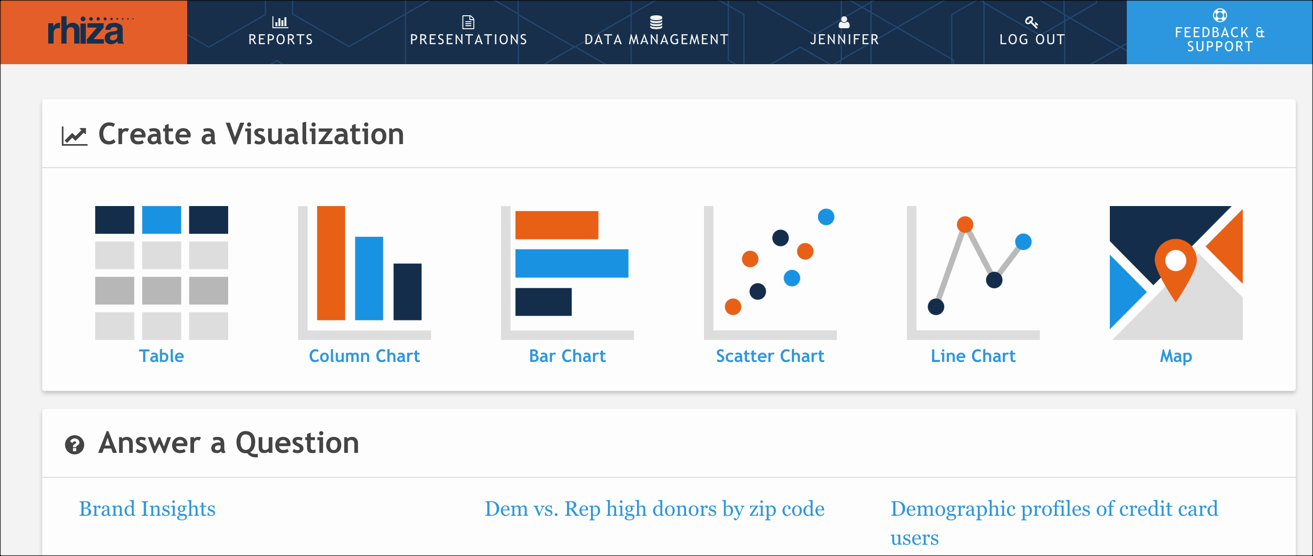
- From the task-based home page (your_custom_URL.rhizalytics.com/home) - Click the Table, Column Chart, Bar Chart, Scatter Chart, Line Chart, or Map visualization icon.
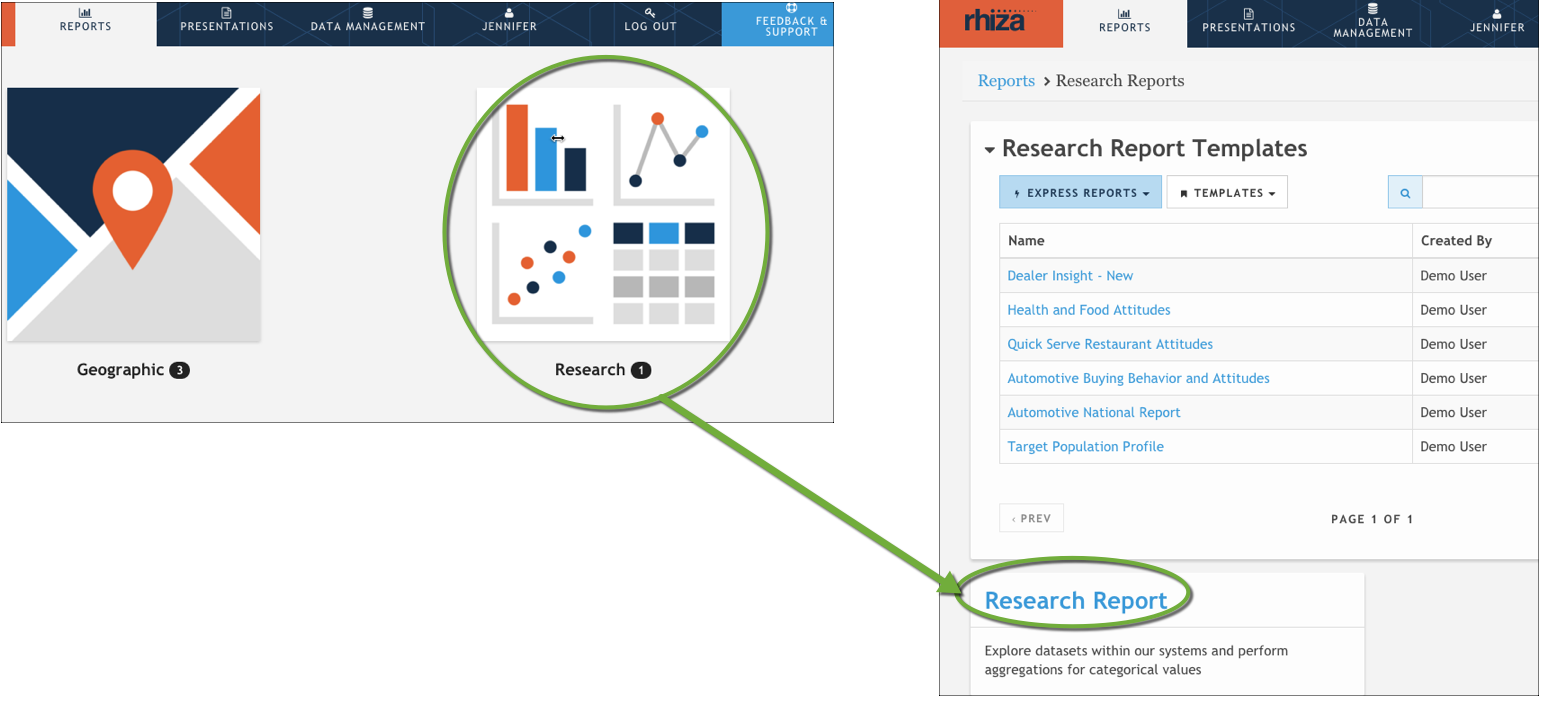
| • | From the Reports page (your_custom_URL.rhizalytics.com/reports) - Click the Research icon, then click Research Report. |
A blank report opens. Use the Section Filters section at right to tell the system what you want to show.
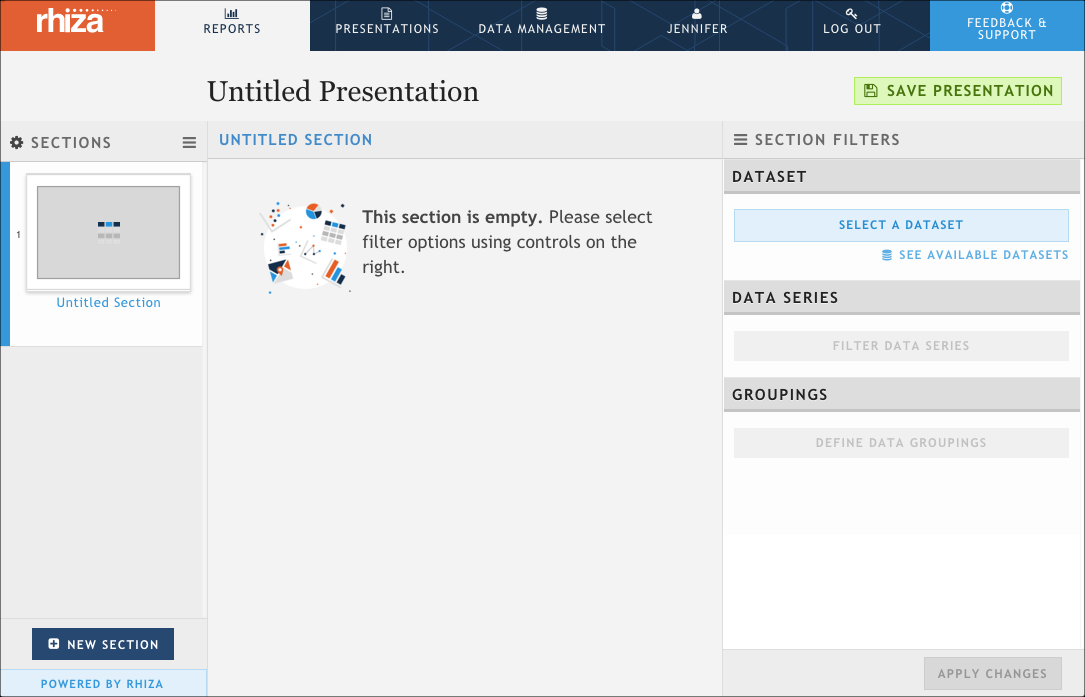
3) Use the Section Filters Panel to Populate the Report
Use the tools in the Section Filters panel to specify your dataset, create data series, and choose the grouping for data aggregation. Read Add Or Modify Data In Your Presentation for step-by-step instructions.
A report can have multiple sections, each with its own filters and data. In this article we'll just work in one section to keep things simple. When you're ready to create a more complex report, read Add or Modify Sections in Your Report to learn how to use sections to show multiple stories in one presentation.
Optional: Set a Context Series
Optionally, you can create index and percentage values in your report by clicking Use as Context Series on one of your data series. The context series becomes the basis for comparing other series. For example, you could create an index comparing Honda sales in the New York City market to nationwide Honda sales by using a context series that shows nationwide Honda sales.
For survey datasets, it can be useful to create a data series with no filters as a context series. The unfiltered series includes all survey respondents, and lets you compare behavior of people who gave specific answers to the general survey population.
Context Series are explained in detail in the Rhiza Online Help topic Create an Index With a Context Series.
4) Create the Report
When you have finished setting up data series and categories, click the Apply Changes button at the bottom of the filter panel.
The Research report automatically creates a visualization showing the results of your query. If you chose a particular visual from the home page, that kind of chart is used; if you started from the Reports page, it shows a table.
The table visualization shows only one data series at a time. Others, like the column chart, show multiple data series together. You can configure the presentation to customize the number and type of visualizations, their content, and other settings.
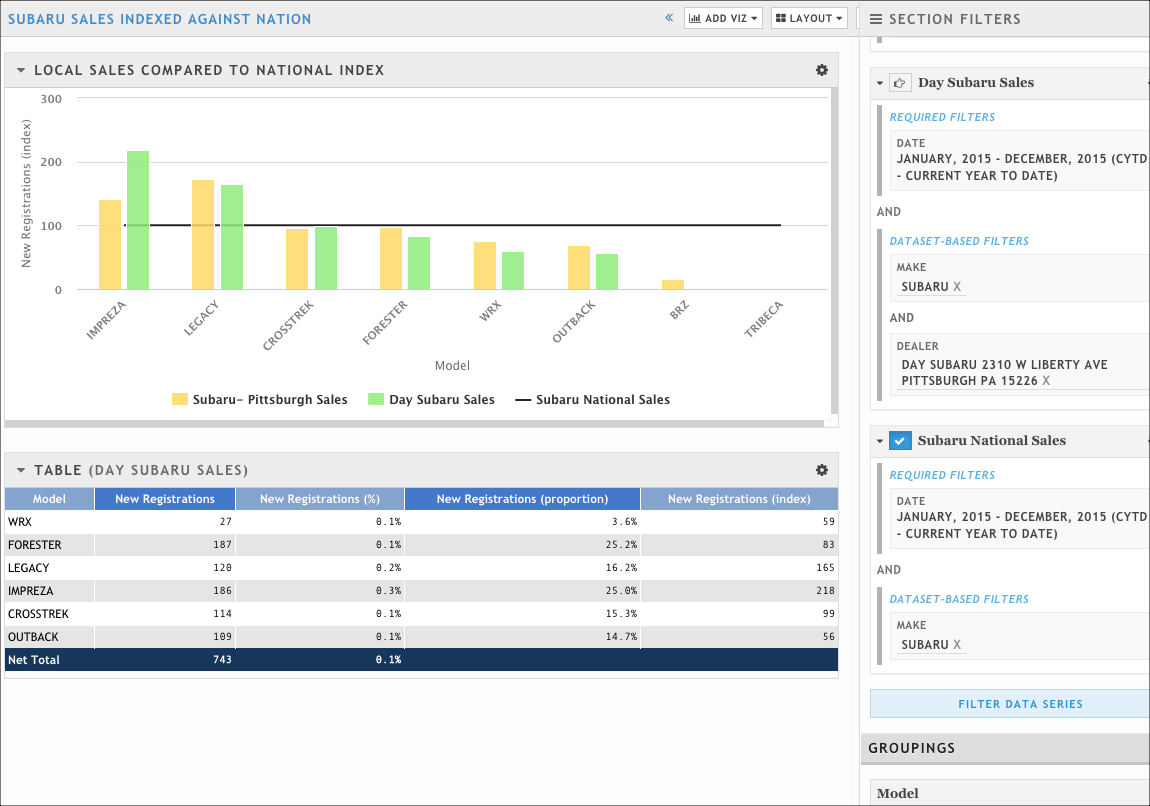
The image below shows an example presentation with three series: one shows registrations for a dealer, one shows registrations for a DMA, and one shows nationwide registrations. The nationwide series is set as the context series, creating an index value. The column chart is customized to show the context series as a line - categories that are significantly below the index line show models that underperform (or are less popular) in that market compared to the national average, and those above the line sold more than average.
6) Save the Presentation
To save your report so that you can return to it later, click Save Presentation at the top right of the page. Once you save your report, all further changes are automatically saved. You can access your report at any time from the Presentations tab and can now share it, copy it, or generate a PowerPoint version to download.
6) Customize Visualizations
You can change the visuals to show different data series, or alter how the data is displayed. Click the gear icon at the top right of each visual to see the options.

The gear menu shows various options, depending on the type of visualization:
| • | Configure - Open the visualization settings dialog |
| • | Attribution - Show dataset information |
| • | Download CSV (tables only) - Export the data in the table as a data file |
| • | Open as PNG (charts only) - Export the visualization as a graphic file |
| • | Delete - Permanently remove the visualization from this report section |
Configuration options are different for different visualizations. See Configuring Visualizations for more information.
Beyond the Basics
Now that you've created a basic report, you're ready to explore Rhiza for Research features in more depth! Read the linked articles below to learn more:
-
The Rhiza for Research Fundamentals - Learn in detail about datasets, data series, groupings, reports, and more. Explore how all these fundamental components work together to create research reports you can use to glean market insights.
-
Visualization Types - Information about the different visualizations Rhiza for Research offers.
- Context Series and Indexes - Indexes, market shares, and beyond!
- Generate a Microsoft PowerPoint Version of Your Report - Details about working with report sections, saving presentations, and downloading a PowerPoint version of your report
- Create And Use Templates And Express Reports - How to save a template from your report section so that you (or your colleagues) can quickly create a similar report later
- Search And Browse Survey-Style Datasets - Explains how to efficiently search and browse survey response data
- Aggregate Data by Date - Use temporal categories to break out data over time